May 1st, 2016 — 12:06 pm
This code sets up three capture templates – for todos, media urls and code snippets (lines 4-7).
%? sets the exit point for the template, %^g prompts for a tag, %^{language} prompts for the language of the snippet and the remainder is boilerplate to create an org-mode entry (*) and an org-mode snippet (#+BEGIN_SRC\n\n#+END_SRC).
http://orgmode.org/manual/Template-expansion.html#Template-expansion
2 comments » | articles
April 2nd, 2016 — 07:41 am
 Building software is hard.
Comment » | personal
December 31st, 2015 — 09:53 am
I just had a fun moment when I realized that Robbert Knepper alias T-Bag of Prison Break also played the soon to be husband of Counselor Diana Troy in Star Trek – Next Generation in Season 1 Episode 11.
That’s how I remember him:

And here he is, acting as a too nice to be true doctor called Wyatt Miller at his wedding reception:
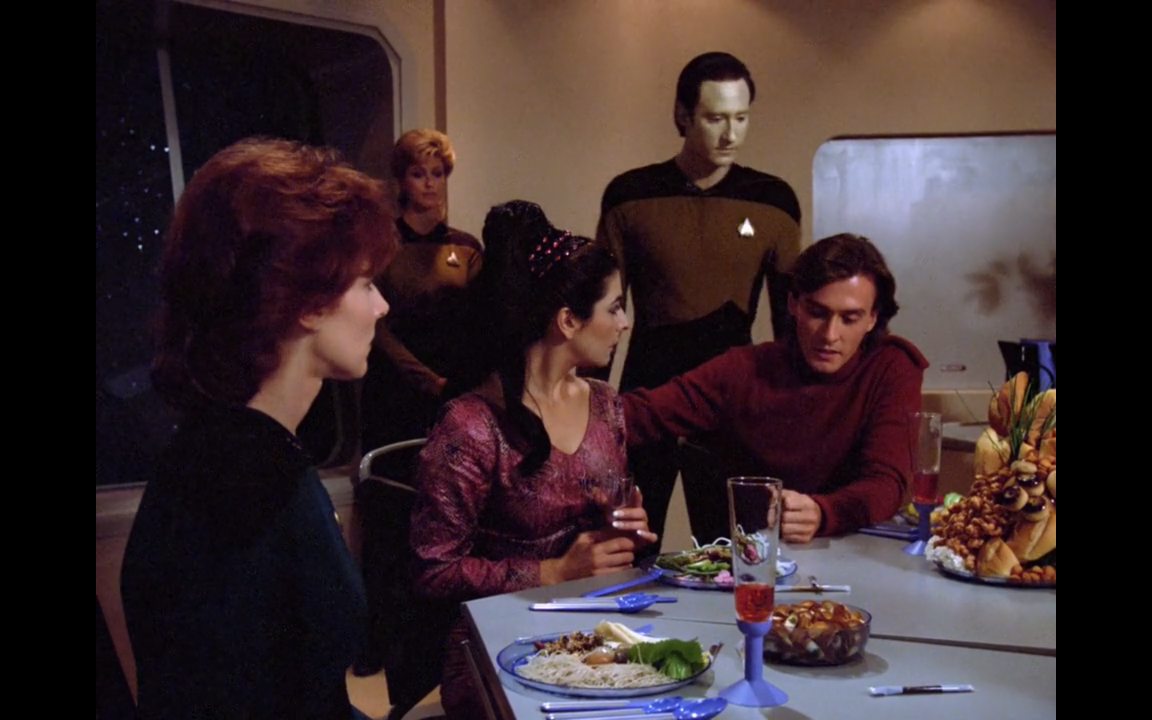
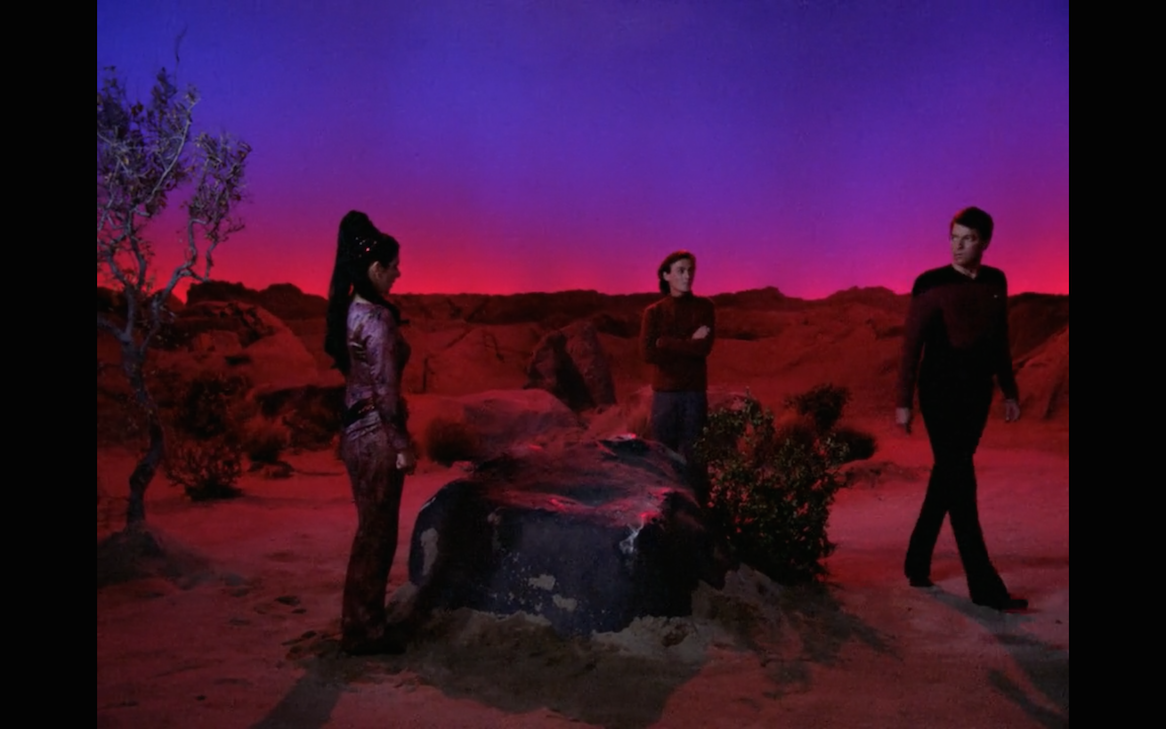
Of course, there’s still trouble (remember, William T. Riker likes Diana, too!). And yeah, in his future T-Bag psycho style, he drives Riker off.
And he get’s the best of Diana who until this point was uncertain about her feelings for her future husband Wyatt. I can’t remember Riker ever kissing Diana on TNG.
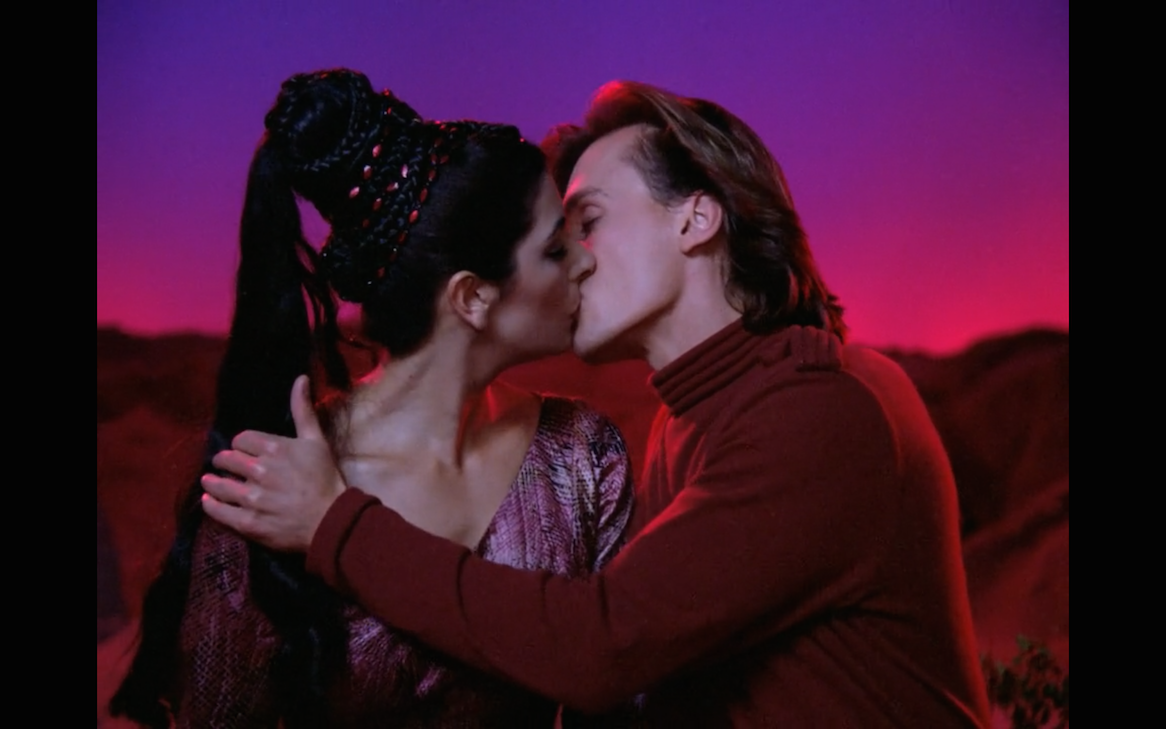
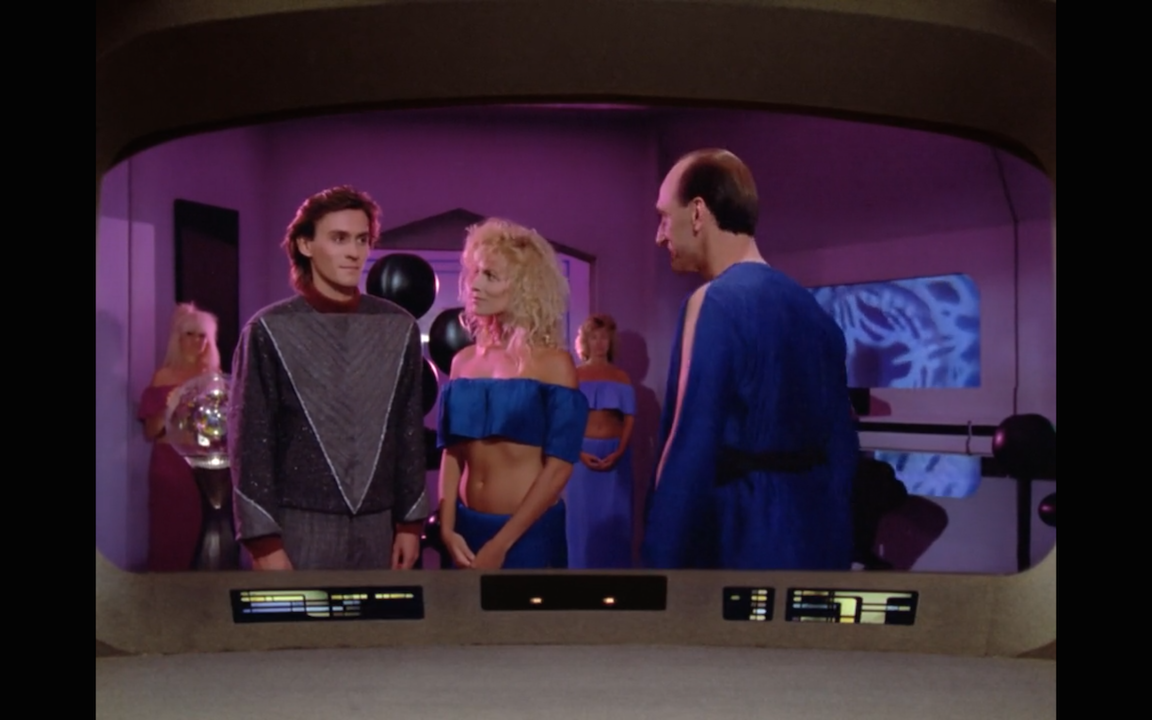
And now for the spoilers. Wyatt, since being a small boy, has been dreaming of a particular lady. He always believed it would be Diana, because she’s a Betazed. However, having met Diana, he now knows that they look very different and she’s not the one. Just minutes after his first kiss with Diana, this dream lady shows up – in a vessel carrying the last 8 remaining people of a species that killed itself with a lethal virus. It turns out she has also been dreaming about him for all her life and for the last 30 years or so they have been searching for him. Being a doctor, he stuns the transporter engineer, beams over whilst ignoring the lethal virus, finds his true love and sails away in the sunset of certainty that he will cure the virus before everyone will be dead.
Finally the old Status Quo has been achieved after all. Riker sets a new course and the Enterprise warps to the next episode full of surprises!
Comment » | articles, personal